
Bulk edit Microsoft Entra PIM settings
A Windows desktop tool that configures PIM settings for many Entra ID roles and PIM-enabled groups at once. Pick the roles, set the policy once, preview the changes and apply, instead of editing every role by hand in the portal.
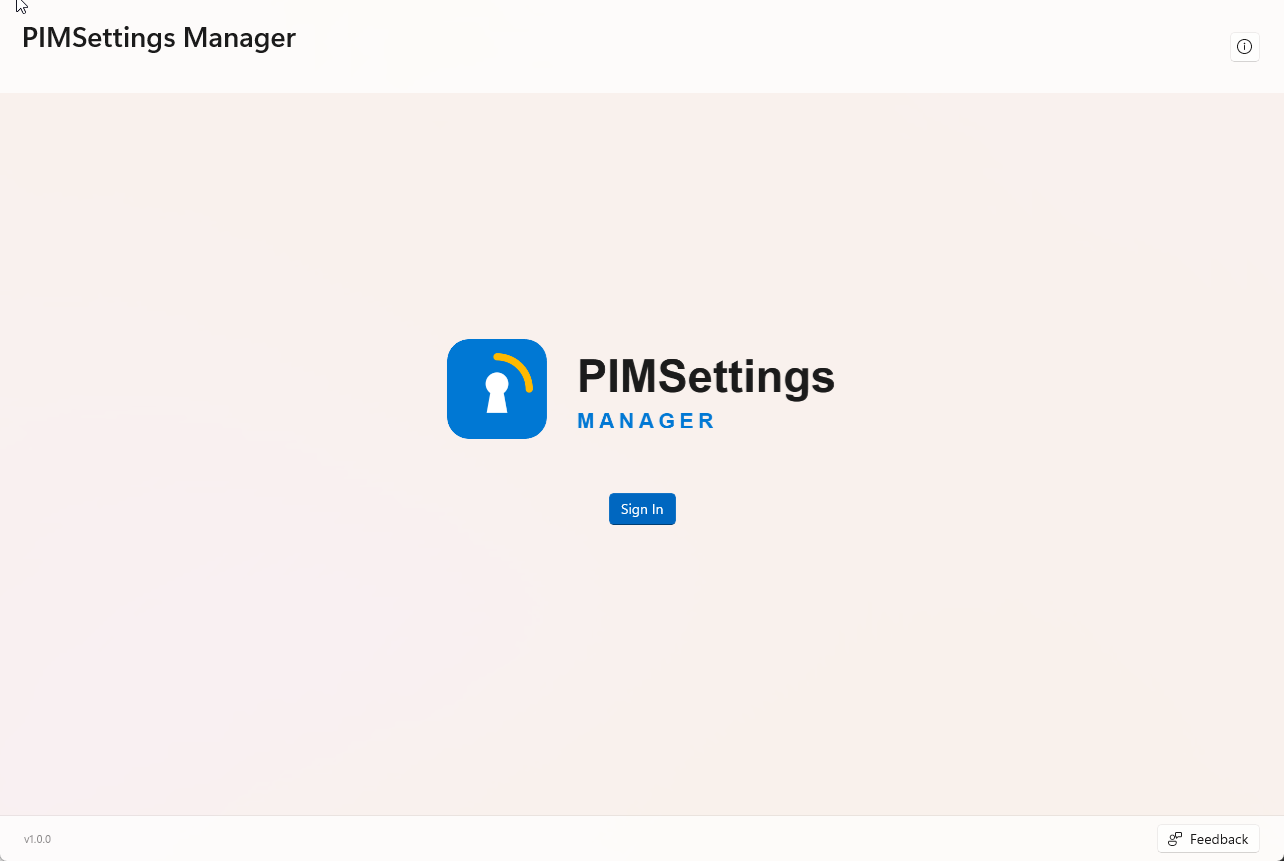 Sign in with your Entra ID account
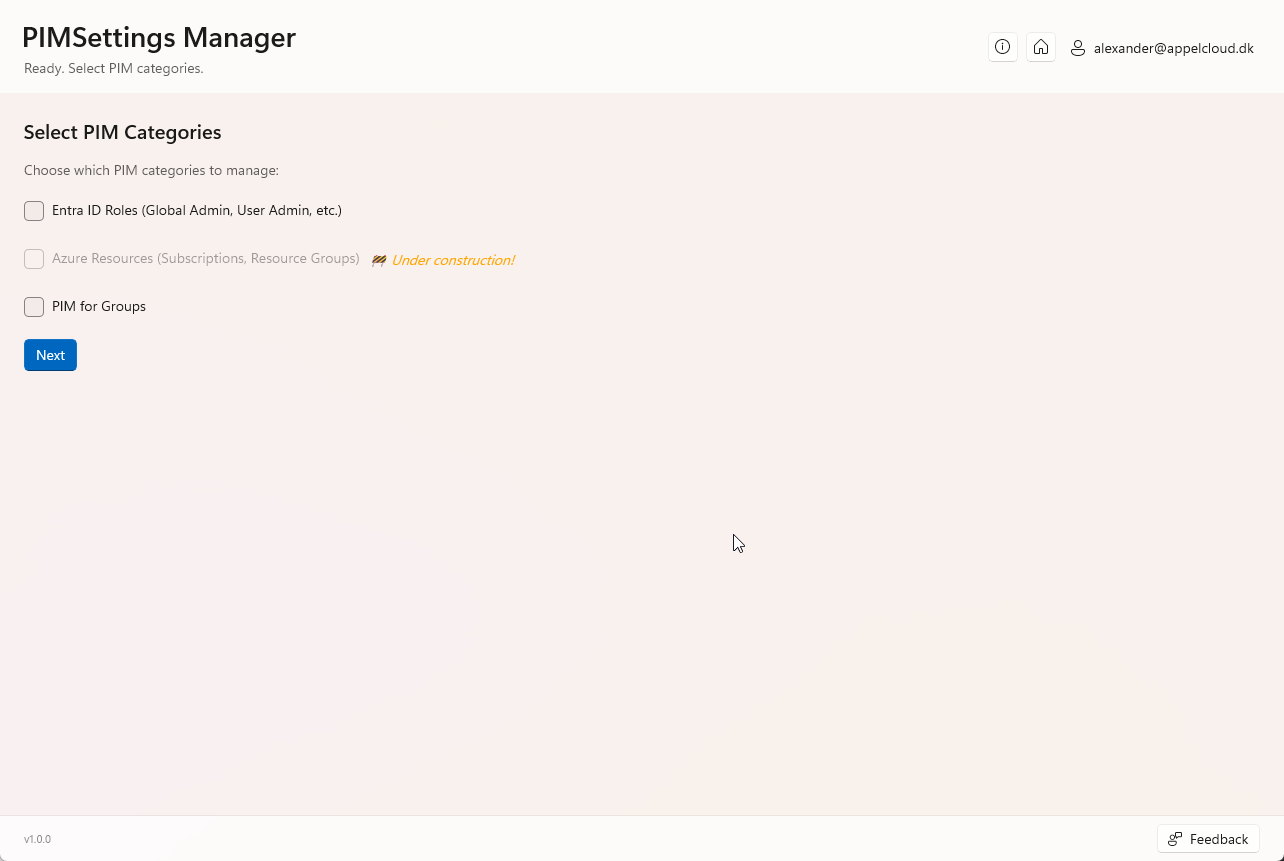 Pick Entra ID Roles, PIM for Groups or both
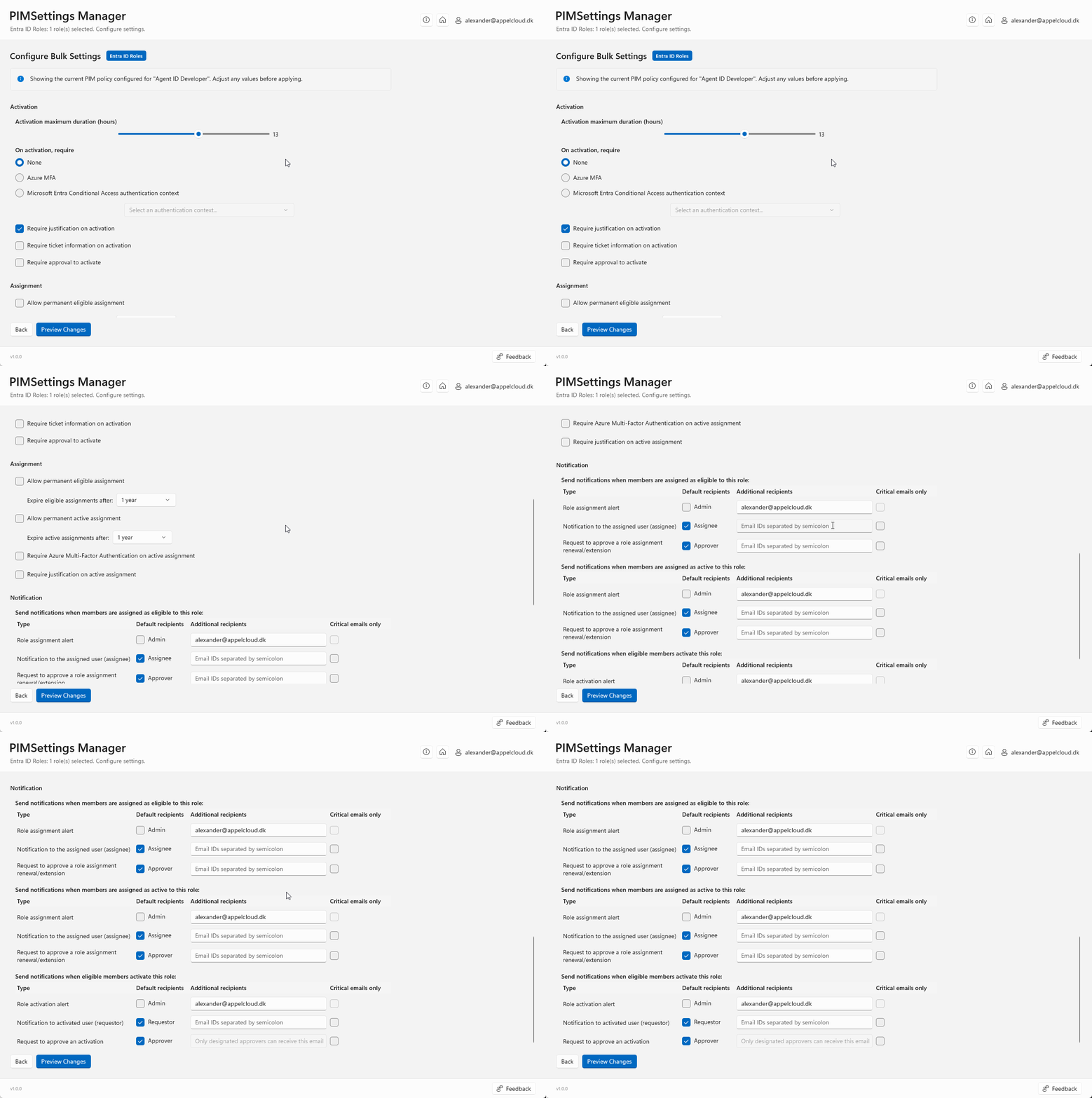 Configure settings for all selected roles
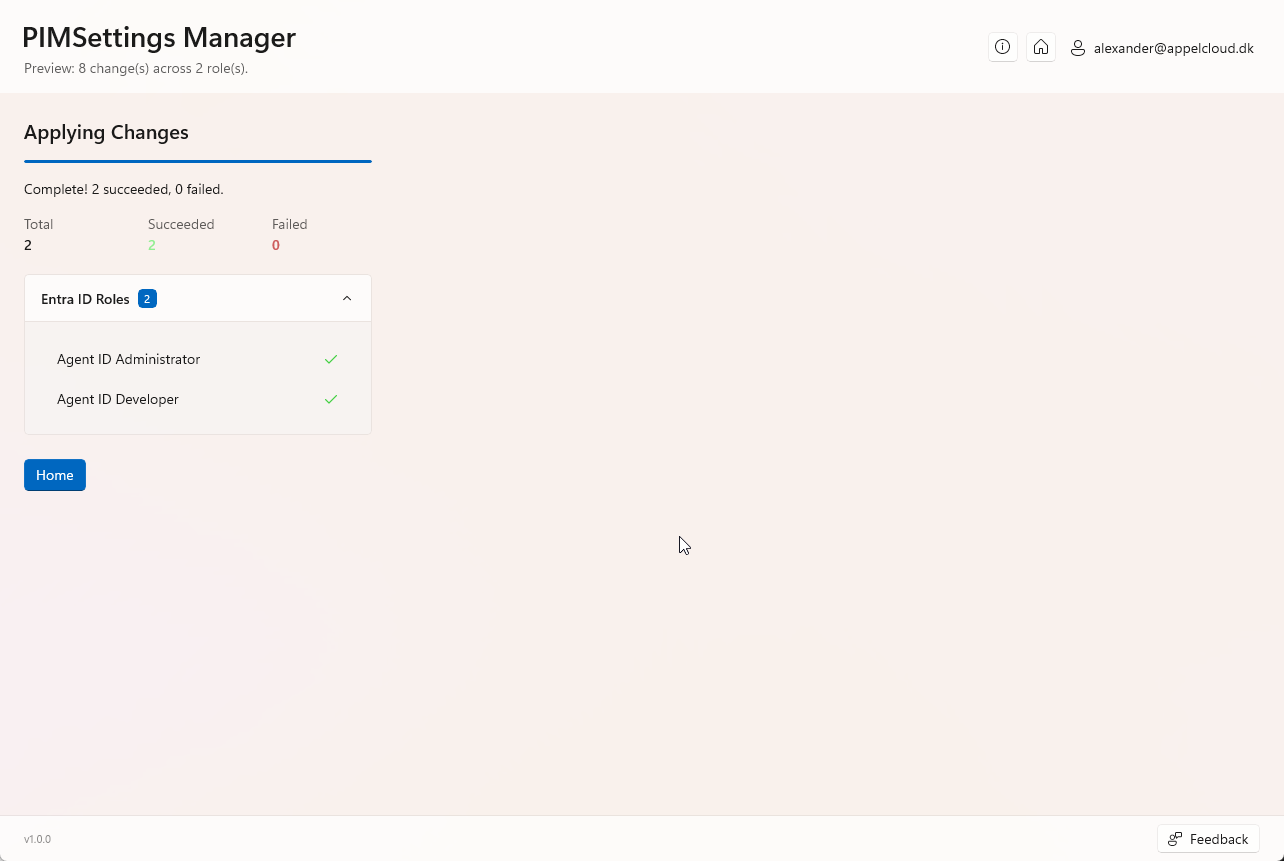 Apply and see the result per role
What it can do
Configure PIM for many roles at once, without the repetitive clicking. Select the Entra ID roles and PIM-enabled groups you want to change, define the settings once, preview every change and apply them all in one go.
Bulk edit directory roles
Apply the same PIM settings to many roles: Global Administrator, User Administrator and more.
Bulk edit PIM groups
Configure the member and owner settings of your PIM-enabled groups.
Preview before applying
See every change as Current → New value, grouped by category and role.
Activation rules
Max duration, MFA or Conditional Access authentication context, justification, ticket info and approval.
Assignment rules
Permanent or expiring eligible/active assignments, MFA and justification on active assignment.
Email notifications
Control notifications to admins, assignees and approvers for assignments and activations.
Get started
-
1. Download
Get
tool.zipfrom the latest release. -
2. Extract
Right-click
tool.zip→ Extract All… to a folder on your PC. -
3. Run
Open the extracted
toolfolder and runPIMSettings Manager.exe.
# Download the latest release
Invoke-WebRequest -Uri "https://github.com/Appelcloud/PimSettingsManager/releases/latest/download/tool.zip" -OutFile "$env:USERPROFILE\Downloads\tool.zip"

# Extract the tool
Expand-Archive -Path "$env:USERPROFILE\Downloads\tool.zip" -DestinationPath "$env:USERPROFILE\PIMSettingsManager" -Force

# Run PIMSettings Manager
Get-ChildItem "$env:USERPROFILE\PIMSettingsManager" -Recurse -Filter "PIMSettings Manager.exe" | Select-Object -First 1 | Start-Process
Requirements
On your PC
- Windows 10 (1809 / build 17763) or later, or Windows 11 (x64)
- .NET 8 Desktop Runtime (x64), or
winget install Microsoft.DotNet.DesktopRuntime.8 - Windows App SDK 2.2 runtime (x64)
In your tenant
- Microsoft Entra ID P2 license
- An account allowed to manage PIM settings (e.g. Privileged Role Administrator)
- Consent to the delegated Microsoft Graph permissions. An admin may need to grant it the first time